Main Menu
Description
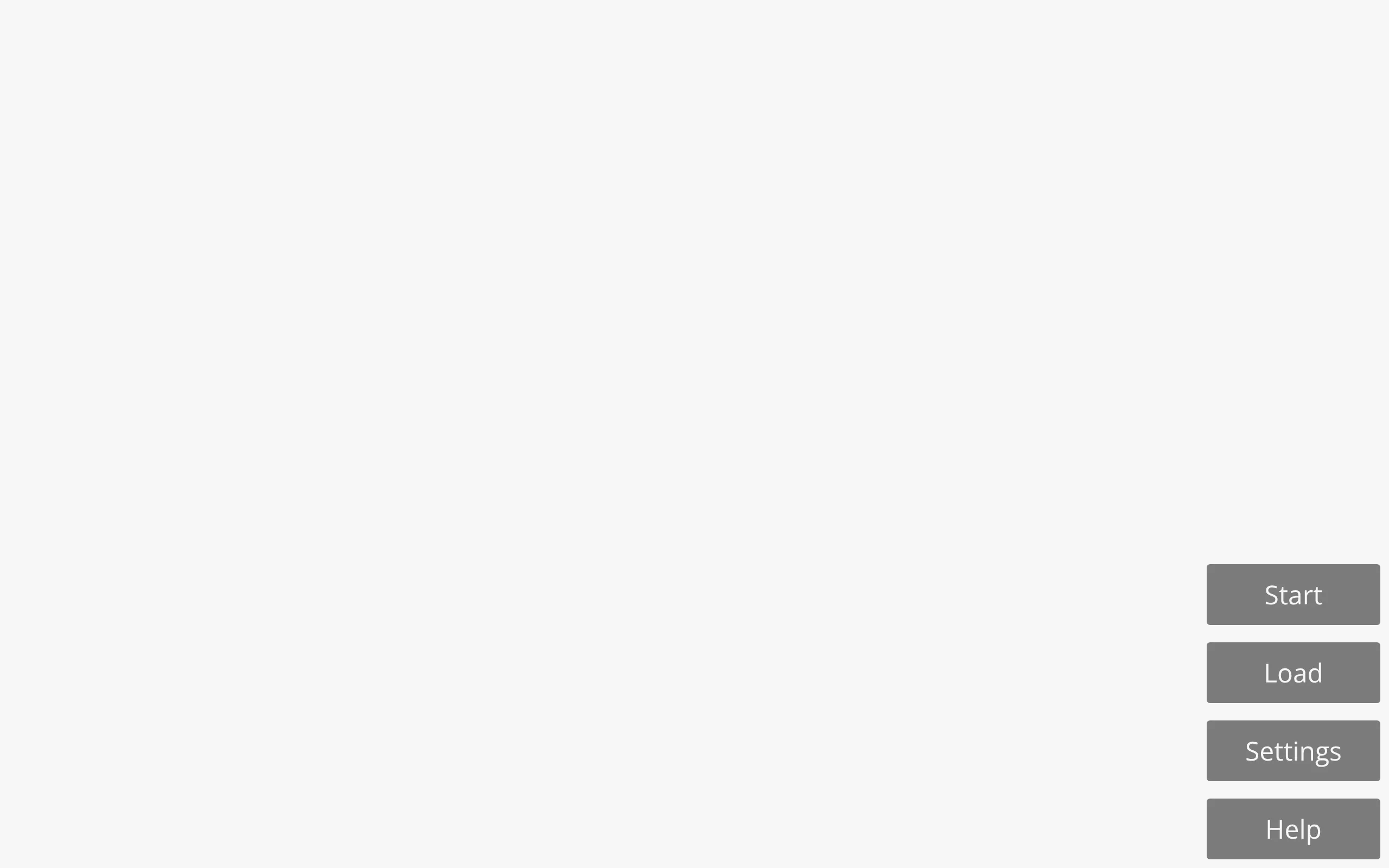
<main-menu></main-menu>The main-menu component renders the menu shown when the game first loads. Each entry it displays (Start, Load, Settings, etc.) comes from its configuration, so you can add, remove, or reorder buttons without ever touching the component’s markup.
Source Code: https://github.com/Monogatari/Monogatari/tree/develop/src/components/main-menu
Default Buttons
Out of the box the main menu ships with the following buttons, in this order:
| String | Action | Description |
|---|---|---|
Start |
start |
Begins a new game. |
Load |
open-screen (opens load) |
Opens the load screen to resume a saved game. |
Settings |
open-screen (opens settings) |
Opens the settings screen. |
Help |
open-screen (opens help) |
Opens the help screen. |
NOTE
The default main menu buttons are defined without an icon, so they render as text only. If you add your own buttons with an icon value, that icon is rendered as a <span> before the label.
Buttons Added By Other Components
Some buttons are not part of the default configuration. They are added automatically by other components, but only when the relevant content exists:
| String | Added By | Condition |
|---|---|---|
Gallery |
Gallery Screen | At least one image is registered with monogatari.assets('gallery', { ... }). |
Credits |
Credits Screen | At least one entry is registered with monogatari.configuration('credits', { ... }). |
Both buttons are inserted with addButton, so they appear at the end of the menu.
Structure
The main menu renders one element per configured button. A simple button with an icon produces the following markup:
<main-menu data-component="main-menu">
    <button icon="" string="Start" tabindex="0" data-action="start">
        <span class=""></span>
        <span data-string="Start">Start</span>
    </button>
    <button icon="" string="Load" tabindex="0" data-action="open-screen" data-open="load">
        <span class=""></span>
        <span data-string="Load">Load</span>
    </button>
    <!-- one element per button in the configuration -->
</main-menu>
For each button, the component:
- Creates a
buttonelement (or the tag named in the button’selementproperty). - Copies every key of the button’s
dataobject onto the element as adata-*attribute. - Sets the
icon,string, andtabindex="0"attributes. - Renders the icon class inside a
<span>and the translated label inside a<span data-string="…">.
Button Definition
Each button is described by a MenuButton object:
| Property | Type | Required | Description |
|---|---|---|---|
string |
string |
Yes | Translation key used for the label and as the button’s unique identifier. |
icon |
string |
Yes | CSS class(es) for the icon, e.g. a Font Awesome class. Use an empty string for no icon. |
data |
object |
No | Key/value pairs rendered as data-* attributes. Use action here to bind the button to an engine action. |
element |
string |
No | Tag name to render instead of button. Defaults to button. |
Adding, Removing, and Reordering Buttons
The main menu inherits its button API from MenuComponent. Call these static methods on the component to change which buttons are shown. Every call re-renders all instances of the menu automatically.
Add Button
static addButton (button: MenuButton): voidAdds a button to the end of the menu.
monogatari.component ('main-menu').addButton ({
    string: 'About',
    icon: 'fas fa-info-circle',
    data: {
        action: 'open-screen',
        open: 'about'
    }
});
Add Button After
static addButtonAfter (after: string, button: MenuButton): voidAdds a button immediately after the button whose string matches the after argument. If no such button exists, nothing is added.
monogatari.component ('main-menu').addButtonAfter ('Start', {
    string: 'Continue',
    icon: 'fas fa-play',
    data: {
        action: 'open-screen',
        open: 'load'
    }
});
Add Button Before
static addButtonBefore (before: string, button: MenuButton): voidAdds a button immediately before the button whose string matches the before argument. If no such button exists, nothing is added.
monogatari.component ('main-menu').addButtonBefore ('Settings', {
    string: 'Achievements',
    icon: 'fas fa-trophy',
    data: {
        action: 'open-screen',
        open: 'achievements'
    }
});
Remove Button
static removeButton (string: string): voidRemoves every button whose string matches the given value.
monogatari.component ('main-menu').removeButton ('Help');Get Buttons
static buttons (): MenuButton[]Returns the full array of button definitions currently configured.
Get a Single Button
static button (string: string): MenuButton | undefinedReturns the button definition whose string matches the given value, or undefined if there is none.
TIP
Because buttons are stored in the component's configuration, you can also set the entire list at once with monogatari.component ('main-menu').configuration ('buttons', [...]). The per-button helpers above are the safer choice when you only need to change one entry.
Styling
The main menu is a screen target. Style its buttons through the main-menu tag:
/* The main menu container */
main-menu {
    display: flex;
    flex-direction: column;
}

/* Every button in the menu */
main-menu button {
    cursor: pointer;
}

/* Target a specific button by its action */
main-menu [data-action="start"] {
    font-weight: bold;
}

/* The icon span rendered before the label */
main-menu button span:first-child {
    margin-right: 0.5em;
}

/* The label span */
main-menu button [data-string] {
    /* Label styling */
}
Related
- Main Screen - The screen that hosts the main menu
- Quick Menu - The in-game menu that shares the same button API
- Gallery Screen - Adds the Gallery button when images are defined
- Credits Screen - Adds the Credits button when credits are defined