Settings Screen
Description
<settings-screen></settings-screen>The settings-screen component renders the in-game options panel where players adjust their Player Preferences: the per-source audio volumes, the typewriter text speed, the auto-play delay, the game/UI language (for multi-language games) and, on desktop builds, the window resolution. Every control reads its initial value from the saved preference and writes the player’s choice straight back to it, so the changes persist between sessions.
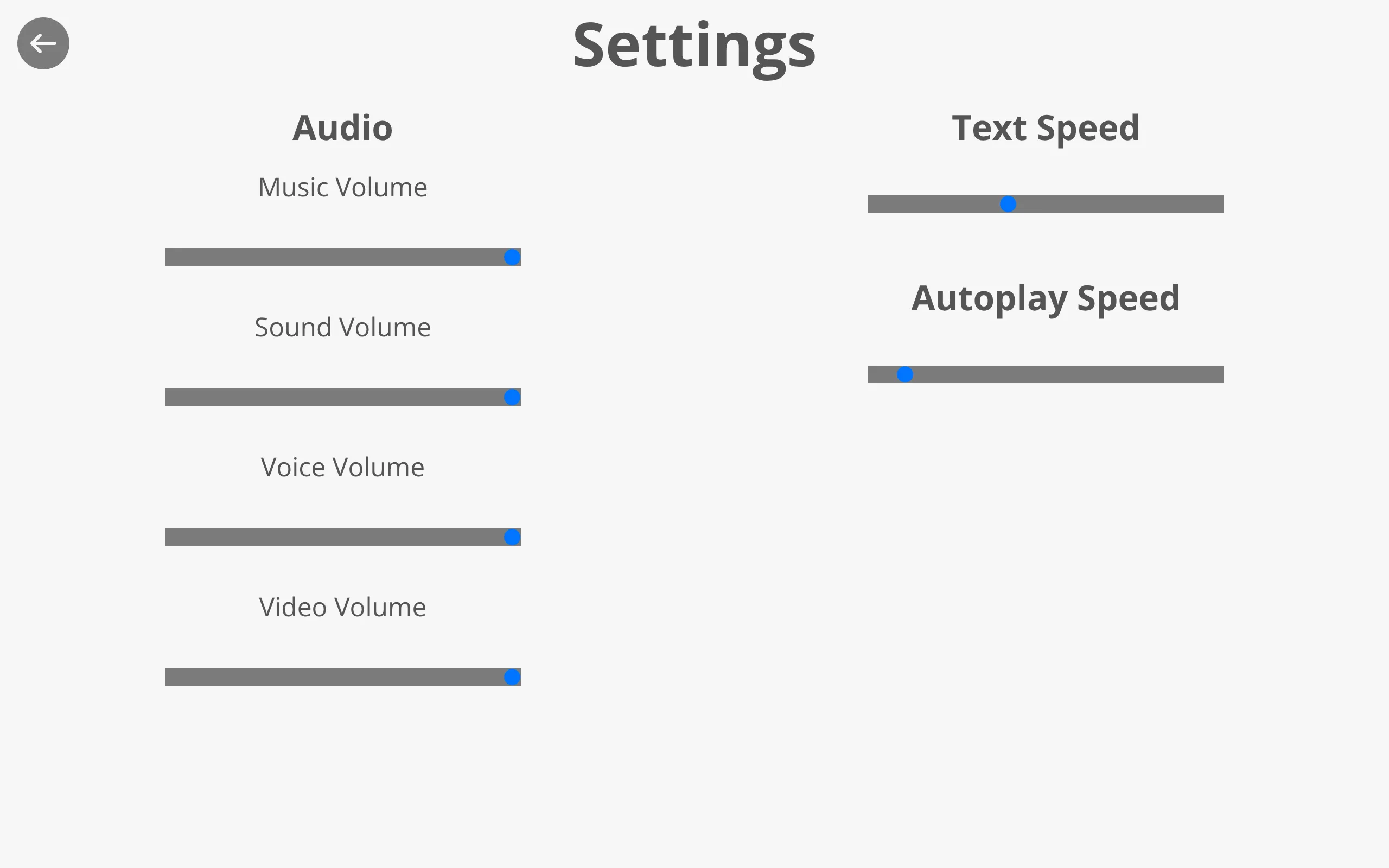
Source Code: https://github.com/Monogatari/Monogatari/tree/develop/src/components/settings-screen
Usage
The settings-screen is a screen component, so it is shown and hidden like any other screen:
// Open the settings screen
monogatari.showScreen('settings');
While a game is playing, pressing Esc toggles between the game and the settings screen.
Structure
The settings-screen renders the following structure:
<settings-screen data-component="settings-screen" data-screen="settings">
    <button class="top left" data-action="back"><span class="fas fa-arrow-left"></span></button>
    <h2 data-string="Settings">Settings</h2>
    <div class="settings">
        <div class="settings-group">
            <div data-settings="audio" class="vertical vertical--center text--center" data-content="audio-settings">
                <h3 data-string="Audio">Audio</h3>
                <span data-string="Music">Music Volume:</span>
                <input type="range" min="0.0" max="1.0" step="0.1" data-action="set-volume" data-target="music">
                <span data-string="Sound">Sound Volume:</span>
                <input type="range" min="0.0" max="1.0" step="0.1" data-action="set-volume" data-target="sound">
                <span data-string="Voice">Voice Volume:</span>
                <input type="range" min="0.0" max="1.0" step="0.1" data-action="set-volume" data-target="voice">
                <span data-string="Video">Video Volume:</span>
                <input type="range" min="0.0" max="1.0" step="0.1" data-action="set-volume" data-target="video">
            </div>
        </div>

        <div class="settings-group">
            <div data-settings="text-speed">
                <h3 data-string="TextSpeed">Text Speed</h3>
                <input type="range" min="1" max="50" step="1" data-action="set-text-speed">
            </div>

            <div data-settings="auto-play-speed">
                <h3 data-string="AutoPlaySpeed">Auto Play Speed</h3>
                <input type="range" min="0" max="60" step="1" data-action="set-auto-play-speed" data-content="auto-play-speed-controller">
            </div>

            <div data-settings="language" data-content="language-settings">
                <h3 data-string="Language">Language</h3>
                <div class="horizontal horizontal--center" data-content="wrapper"></div>
            </div>

            <div data-settings="resolution" data-platform="desktop">
                <h3 data-string="Resolution">Resolution</h3>
                <div class="horizontal">
                    <select data-action="set-resolution"></select>
                    <span class="fas fa-sort" data-select="set-resolution"></span>
                </div>
            </div>
        </div>
    </div>
</settings-screen>
The data-screen="settings" attribute is added automatically by the base screen component, and active is toggled on the element when the screen is opened.
NOTE
The language and resolution sections are not always present at runtime. The language dropdown is only built when the MultiLanguage setting is true; otherwise the whole language-settings block is removed. The resolution block is only kept on desktop (Electron / Electrobun) builds; on the web it is removed.
State
The settings-screen inherits its state from the base screen component.
| Property | Type | Default | Description |
|---|---|---|---|
open |
boolean |
false |
Whether the screen is currently open. When true, the active class is added to the element. |
Controls and Preferences
Each control maps to a value in Player Preferences. The screen initializes every control from the matching preference when the engine finishes initializing, and writes the new value back when the player interacts with it.
| Control | Element | Action | Preference written |
|---|---|---|---|
| Music volume | input[type="range"] (data-target="music") |
set-volume |
Volume.Music |
| Sound volume | input[type="range"] (data-target="sound") |
set-volume |
Volume.Sound |
| Voice volume | input[type="range"] (data-target="voice") |
set-volume |
Volume.Voice |
| Video volume | input[type="range"] (data-target="video") |
set-volume |
Volume.Video |
| Text speed | input[type="range"] (1–50) |
set-text-speed |
TextSpeed |
| Auto play speed | input[type="range"] (0–60) |
set-auto-play-speed |
AutoPlaySpeed |
| Language | select[data-action="set-language"] |
set-language |
Language |
| Resolution | select[data-action="set-resolution"] |
set-resolution |
Resolution |
Notes on specific controls:
- Volume sliders range from
0.0(muted) to1.0(full). Their handler applies the new volume to the matching media players immediately and saves the value into theVolumepreference object. - Text speed ranges from
1(fastest) to50(slowest). Lower values display dialog faster. - Auto play speed ranges from
0to60seconds. The maximum allowed value is clamped to theMaxAutoPlaySpeedsetting, and on mount the screen setsMaxAutoPlaySpeedfrom the slider’smaxattribute. - Language is a dropdown listing every language present in the loaded script. Selecting one updates the
Languagepreference and re-localizes the UI and game immediately.
TIP
The label icons next to the Language and Resolution dropdowns carry a data-select attribute. Clicking the label focuses and opens the corresponding <select>, which makes the custom-styled dropdowns easier to use.
Content Areas
The component exposes the following named content areas (via [data-content="…"]).
| Name | Selector | Description |
|---|---|---|
audio-settings |
[data-content="audio-settings"] |
Container for the audio volume sliders. On iOS this is replaced with the iOSAudioWarning message. |
language-settings |
[data-content="language-settings"] |
The whole language section. Removed when MultiLanguage is false. |
wrapper |
[data-content="wrapper"] |
Holds the language <select> that is generated for multi-language games. |
language-selector |
[data-content="language-selector"] |
The generated language <select> element. |
auto-play-speed-controller |
[data-content="auto-play-speed-controller"] |
The auto-play speed range input. |
WARNING
On iOS the individual audio sliders cannot work because the device controls volume through the system, so the audio area is replaced with the iOSAudioWarning string instead of the sliders.
Desktop (Electron) Resolution
The resolution dropdown is only active on desktop builds. When the desktop bridge is available, the screen requests the window’s size constraints and, if the window is not freely resizable (because ForceAspectRatio is set to Global), populates the dropdown with valid windowed sizes plus a full-screen option. Choosing an option resizes the window and stores the chosen value in the Resolution preference.
If the window is freely resizable, the resolution section is hidden. On the web, the data-platform="desktop" block is removed entirely.
// Default resolution used by desktop builds
monogatari.preferences({
    'Resolution': '1280x720'
});
NOTE
The Resolution preference and this dropdown only affect Electron / Electrobun desktop builds. They have no effect on web-deployed games.
Localization
The screen uses data-string attributes for translatable text:
| String Key | Default | Description |
|---|---|---|
Settings |
“Settings” | Screen title |
Audio |
“Audio” | Audio section heading |
Music |
“Music Volume” | Music slider label |
Sound |
“Sound Volume” | Sound slider label |
Voice |
“Voice Volume” | Voice slider label |
Video |
“Video Volume” | Video slider label |
TextSpeed |
“Text Speed” | Text speed section heading |
AutoPlaySpeed |
“Autoplay Speed” | Auto-play section heading |
Language |
“Language” | Language section heading |
Resolution |
“Resolution” | Resolution section heading |
iOSAudioWarning |
“Audio settings are not supported on iOS” | Shown in place of the sliders on iOS |
Windowed |
“Windowed” | Prefix for windowed resolution options (desktop) |
FullScreen |
“Full Screen” | Full-screen resolution option (desktop) |
Styling
The settings-screen can be styled with CSS against its real selectors:
/* The screen itself */
settings-screen {
    /* Your styles */
}

/* Only when the screen is open */
settings-screen.active {
    /* Visible state */
}

/* Audio section */
settings-screen [data-content="audio-settings"] {
    /* Volume sliders container */
}

/* Range inputs and selects */
settings-screen input,
settings-screen select {
    margin: 2rem;
    background-color: transparent;
}

/* The two settings columns */
settings-screen .settings {
    display: flex;
    flex-direction: column;
    gap: 1rem;
}

/* Resolution section (desktop only) */
settings-screen [data-settings="resolution"] {
    /* Resolution dropdown container */
}
Customizing
Restyle a section
Each settings group is a data-settings="…" block, and a few have named data-content regions. Target them directly to restyle or rearrange the screen:
/* The audio sliders block */
settings-screen [data-content="audio-settings"] {
    /* Your styles */
}

/* The text speed block */
settings-screen [data-settings="text-speed"] {
    /* Your styles */
}

/* The auto-play block (the slider has its own content name) */
settings-screen [data-content="auto-play-speed-controller"] {
    /* Your styles */
}
Hide a control
To remove a control entirely, override the structure with the template() function and drop the data-settings block you don’t want. For example, to ship a game with no language picker, leave out the data-settings="language" / data-content="language-settings" block. (Keeping the MultiLanguage setting false already removes that block at runtime, so you only need a custom template for controls that have no setting to disable them.)
NOTE
If you change the structure, keep the data-action attributes (set-volume, set-text-speed, set-auto-play-speed, set-language, set-resolution) on the controls you keep, since those are what wire each control to its preference.
Related
- Player Preferences - The values these controls read and write
- Internationalization - Enables the language dropdown
- Save Screen - Where players store their progress
- Load Screen - Where players resume their progress